GridLayoutを使って、格子状にViewを表示する

先日Android4.0(コードネーム IceCreamSandwich:ICS)が公開されました。
TechBoosterでは、本日よりICSのAPIを中心に紹介していきます。
本タイトルでは、ICSから追加されたGridLayoutを紹介します。
GridLayoutは、格子状にViewを配置する事に向いています。
※以前まではLinearLayoutを複数使用するなどし、作成する必要がありました。

今回はGridLayoutを用いて電卓の画面(上記画像)を作成するサンプルを紹介していきます。
GridLayoutを使用する際に重要となるパラメータは以下の表の通りです。
GridLayoutに指定する重要パラメータ(表1)
| パラメータ | 概要 |
|---|---|
| android:columnCount | 横方向のマスの数 |
| android:rowCount | 縦方向のマスの数 |
GridLayoutの子Viewに指定する重要パラメータ(表2)
| パラメータ | 概要 |
|---|---|
| android:layout_column | 列の指定(0オリジン) |
| android:layout_columnSpan | 列方向に何マス消費するか |
| android:layout_row | 行の指定(0オリジン) |
| android:layout_rowSpan | 行方向に何マス消費するか |
| android:layout_gravity | 格子内でのgravity指定を行う |
それではつづきをどうぞ。
1.GridLayoutへのパラメータ指定
GridLayout自身へは、表1の通り2つのパラメータを設定する必要があります。
columnCount,rowCountは column × row の格子を用意するという宣言に当たります。
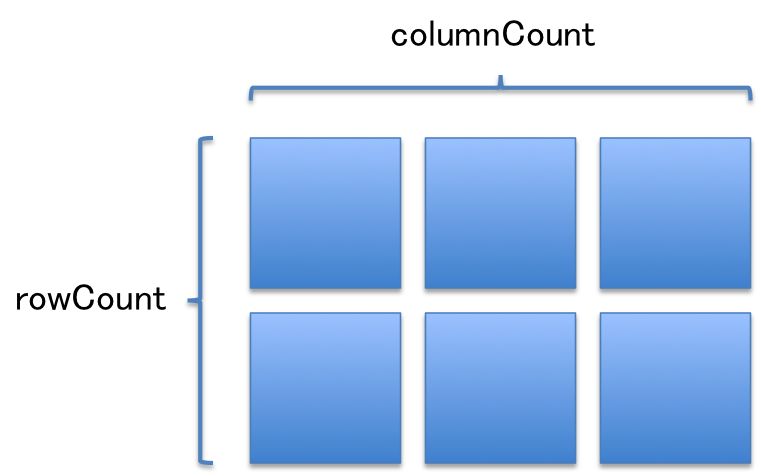
サンプルでは、以下の通り、4×4マスの格子を作成しています。
    <GridLayout
        android:id="@+id/gridLayout1"
        android:layout_width="match_parent"
        android:layout_height="wrap_content"
        android:columnCount="4"
        android:rowCount="4" >
...省略
2.GridLayoutの子Viewへのパラメータ指定
column,rowの指定
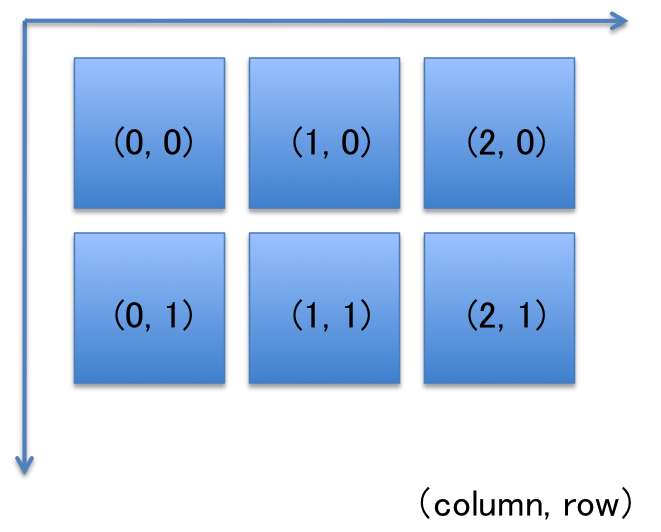
GridLayoutの子Viewには、android:layout_columnとandroid:layout_rowを指定する必要があります。
android:layout_columnとandroid:layout_rowは以下図の、どの場所(column, row)にViewを配置するかを設定します。
格子をまたぐViewの設定
格子状にViewを配置できるとはいえ、サンプルのスクリーンショットの「+」ボタンなどのように
複数の格子をまたいだViewを作成するには、android:layout_columnSpanとandroid:layout_rowSpanを使用します。
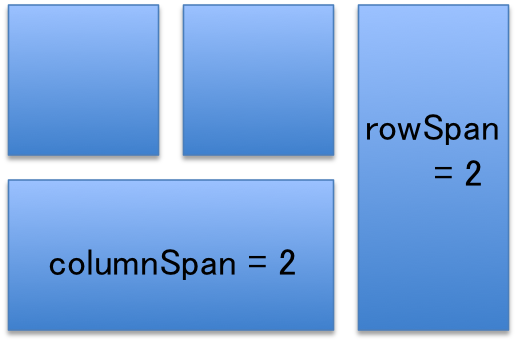
上図の様に、列方向(横方向)に2マス使用したい場合にはandroid:layout_columnSpan = 2を、行方向(縦方向)に2マス使用したい場合にはandroid:layout_rowSpan = 2を指定します。
格子内のGravity
GridViewの子Viewに対し、android:layout_gravityを指定すると、
格子内でViewの位置を指定することが可能です。
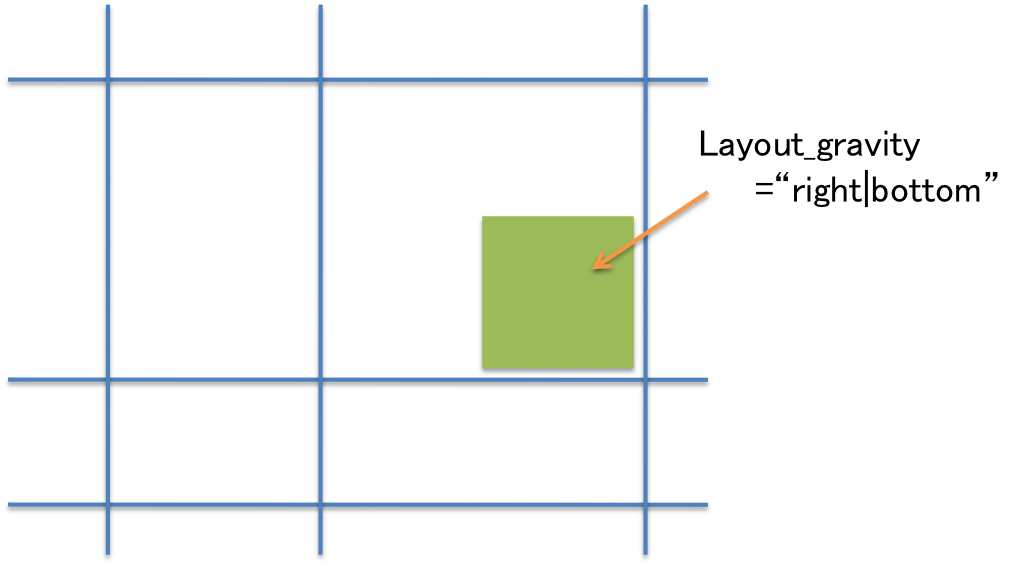
Gravityの指定内容に関しては、以下記事を参考にどうぞ
Viewを任意の位置に配置する
最後に、サンプルのLayoutファイルを紹介します。
<LinearLayout xmlns:android="http://schemas.android.com/apk/res/android"
    android:layout_width="fill_parent"
    android:layout_height="fill_parent"
    android:orientation="vertical"
    android:rowOrderPreserved="true" >

    <TextView
        android:id="@+id/ansField"
        android:layout_width="fill_parent"
        android:layout_height="wrap_content"
        android:gravity="right"
        android:text=""
        android:textAppearance="?android:attr/textAppearanceLarge" />

    <GridLayout
        android:id="@+id/gridLayout1"
        android:layout_width="match_parent"
        android:layout_height="wrap_content"
        android:columnCount="4"
        android:rowCount="4" >

        <Button
            android:id="@+id/button7"
            android:layout_width="64dp"
            android:layout_column="0"
            android:layout_row="0"
            android:text="7" />

        <Button
            android:id="@+id/button8"
            android:layout_width="64dp"
            android:layout_column="1"
            android:layout_gravity="bottom"
            android:layout_row="0"
            android:text="8" />

        <Button
            android:id="@+id/button9"
            android:layout_width="64dp"
            android:layout_column="2"
            android:layout_gravity="left"
            android:layout_row="0"
            android:text="9" />

        <Button
            android:id="@+id/button4"
            android:layout_width="64dp"
            android:layout_column="0"
            android:layout_row="1"
            android:text="4" />

        <Button
            android:id="@+id/button5"
            android:layout_column="1"
            android:layout_width="64dp"
            android:layout_gravity="left"
            android:layout_row="1"
            android:text="5" />

        <Button
            android:id="@+id/button6"
            android:layout_column="2"
            android:layout_row="1"
            android:layout_width="64dp"
            android:text="6" />

        <Button
            android:id="@+id/button1"
            android:layout_column="0"
            android:layout_row="2"
            android:layout_width="64dp"
            android:text="1" />

        <Button
            android:id="@+id/button2"
            android:layout_column="1"
            android:layout_row="2"
            android:layout_width="64dp"
            android:text="2" />

        <Button
            android:id="@+id/button3"
            android:layout_column="2"
            android:layout_row="2"
            android:layout_width="64dp"
            android:text="3" />

        <Button
            android:id="@+id/button."
            android:layout_width="64dp"
            android:layout_column="0"
            android:layout_gravity="bottom"
            android:layout_row="3"
            android:text="." />

        <Button
            android:id="@+id/button0"
            android:layout_width="120dp"
            android:layout_column="1"
            android:layout_columnSpan="2"
            android:layout_gravity="center"
            android:layout_row="3"
            android:text="0" />

        <Button
            android:id="@+id/buttonPlus"
            android:layout_height="90dp"
            android:layout_width="64dp"
            android:layout_column="3"
            android:layout_gravity="bottom"
            android:layout_row="0"
            android:layout_rowSpan="2"
            android:text="+" />

        <Button
            android:id="@+id/buttonEqu"
            android:layout_height="90dp"
            android:layout_width="64dp"
            android:layout_column="3"
            android:layout_gravity="bottom"
            android:layout_row="2"
            android:layout_rowSpan="2"
            android:text="=" />
    </GridLayout>

</LinearLayout>
About The Author
